
Guide
How to Colorize Old Black & White Photos Online
Use free smart tools to estimate natural-looking color for black-and-white family photos - step-by-step instructions with tips for faithful results.
Published Feb 19, 2026 · Updated Sep 17, 2026 · 7 min read
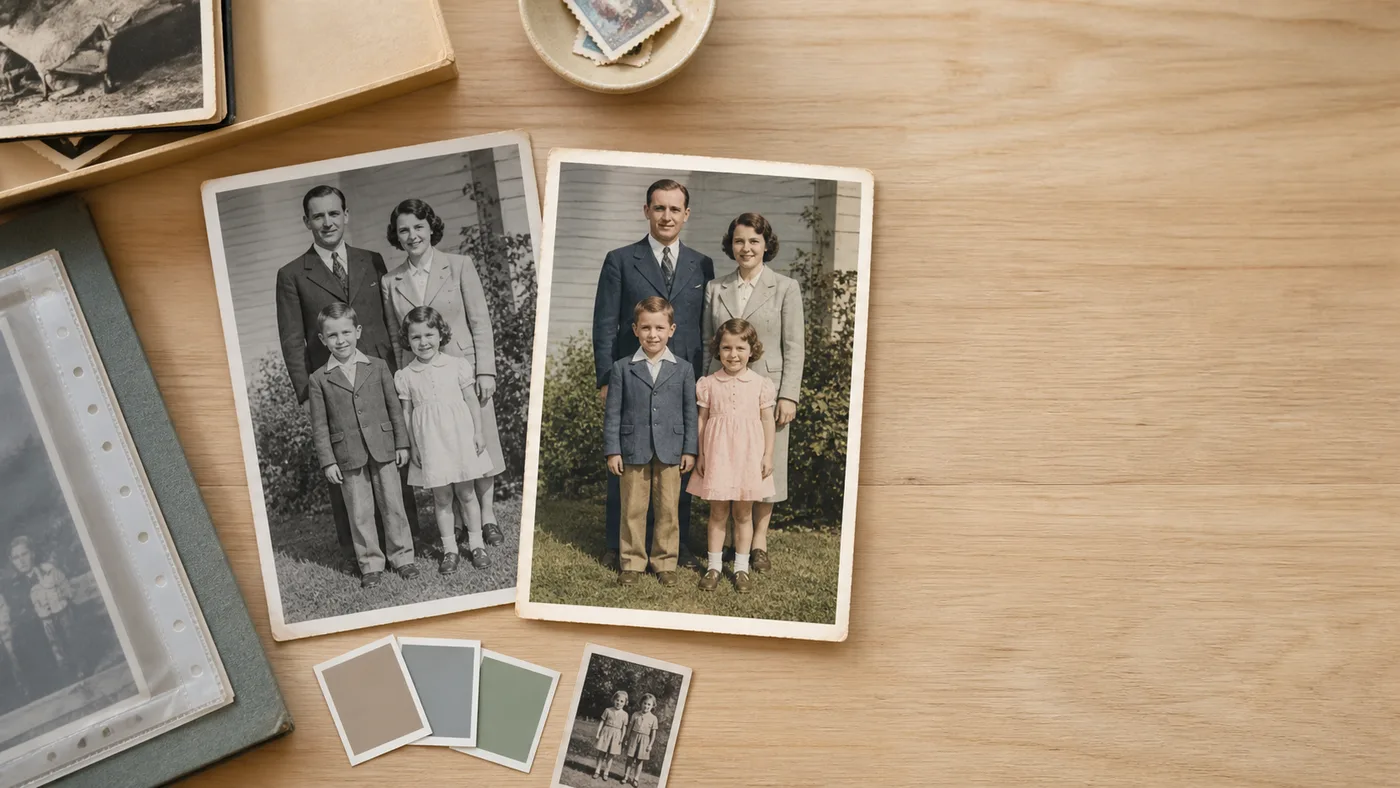
You might have one black-and-white photo everyone in your family cares about: grandparents as teenagers, a wedding portrait, or a moment that only exists in grayscale. Today, smart can add realistic color in seconds, and several tools let you test results for free.
This guide explains how online photo colorization works, how to get better output, and what to expect from the process.
How smart photo colorization works
smart colorizers are trained on millions of color photos. They detect content like skin, sky, foliage, fabric, and buildings, then predict plausible colors.
A few things to understand first:
The output is an interpretation. smart cannot know exact historical colors unless you provide references.
Portraits usually perform best. Face and skin-tone rendering is often more consistent than complex backgrounds.
Input quality matters. A sharper, cleaner scan gives better colorization.
Before colorizing, use scan quality basics for iPhone and consider a restoration pass if the image is damaged. If you are still deciding which scanning-first app stack to use before restoration, compare options in Best Photomyne alternatives in 2026.
Step-by-step: colorize with PhotoScanRestore
1) Scan or photograph your black-and-white print
Use a phone camera or flatbed scanner. Aim for even light and sharp focus. If you need capture help, follow the iPhone scanning guide.
2) Upload to the Photo Colorizer
Open the Photo Colorizer tool and upload your image. JPG, PNG, HEIC, and WebP are supported.
3) Let smart process the file
Processing typically takes seconds.
4) Review the before/after output
Use the preview to verify skin tones, clothing, and background realism.
5) Refine and export
If you plan a larger print, run the result through Image Upscaler. If faces are still soft, run Face Enhancer before final export.
Tips for better colorization results
Start from the cleanest scan possible. A good source image drives everything.
Crop distractions before processing. Remove borders and background noise.
Try more than one tool. Different models handle color decisions differently.
Adjust saturation lightly afterward. Small changes usually look more natural.
Treat colorization as interpretation. Keep a copy of the original black-and-white file.
For heavily damaged files, restore first with full restoration.
Other free colorization tools to test
ImageColorizer - free basic use, plus repair features.
CapCut Photo Colorizer - free and easy for social-ready edits.
ImgUpscaler smart - simple free uploads, one image at a time.
Palette.fm - multiple palette looks for creative control.
| Tool | Price | Signup Required | Batch Processing | Quality |
|---|---|---|---|---|
| PhotoScanRestore | Free preview | No (preview) | Upload-based | High, natural tones |
| ImageColorizer | Free basic; Pro for more | No | Pro only | Good |
| CapCut | Free | No | No | Decent |
| ImgUpscaler | Free | No | No | Good |
| Palette.fm | Free | No | No | Variable |
What colorization cannot do
Severe physical damage needs restoration first. If data is missing, smart can only guess.
Extreme exposure limits accuracy. Very dark or blown-out scans carry less detail.
Specific uniforms and objects may be wrong. For historically important photos, verify colors manually.
If your photo is faded, scratched, or torn, use How to restore damaged photos before colorization. If faces are blurry, pair this with How to fix blurry old photos.
Frequently Asked Questions
Can I colorize old photos for free?
Yes. Several smart tools offer free colorization, including PhotoScanRestore (free preview), CapCut (fully free), ImageColorizer (free basic tier), and ImgUpscaler (free, no login). Quality varies by tool, so trying multiple tools is useful.
How accurate is smart photo colorization?
smart colorization is a best guess based on visual patterns in the image. Skin tones and sky colors are often accurate, while clothing and specific objects can be less reliable.
Should I restore a photo before or after colorizing?
Restore first, then colorize. Fixing scratches, fading, and damage before adding color usually produces cleaner and more natural results.
Can I colorize a photo on my iPhone?
Yes. PhotoScanRestore's colorizer works in your iPhone browser with no app download required.
Does colorization damage the original file?
No. Colorization tools generate a new edited copy. Your original black-and-white file remains unchanged.
Related guides
- Damage-first workflow: How to restore old damaged photos online
- Enhancer comparison: Best Remini alternatives in 2026
- Scanning-first alternatives: Best Photomyne alternatives in 2026
- Scanner pricing context: Photomyne cost guide
- Free-tier context: Is Photomyne free?
- Broader restoration hub: Restore old photos
- Capture setup: Scan old photos on iPhone
For broader scanning context, also read best photo scanning app picks and run a full restore test at /demo/restore.
CapCut, ImageColorizer, Palette.fm, and other product names are trademarks of their respective owners and are not affiliated with PhotoScanRestore.