
Guide
How to Make a Family Tree with Photos
Make a family tree with photos: choose a format, scan old pictures, restore faded portraits, crop faces, add captions, and back up files.
Published May 14, 2026 · Updated Sep 17, 2026
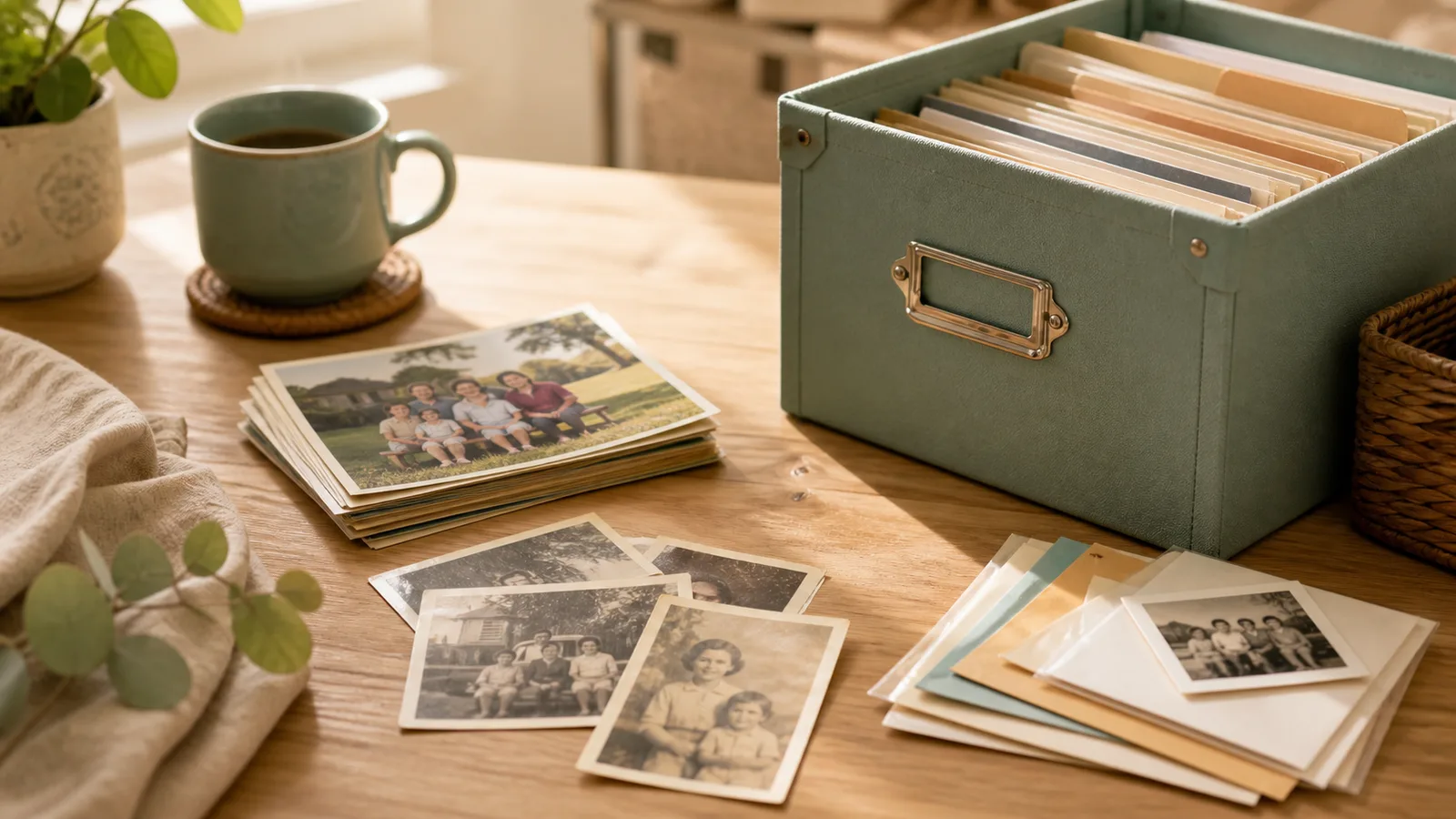
Quick answer: to make a family tree with photos, choose the type of tree first, pick one clear photo for each person, scan the full print, restore only the faded or damaged keeper portraits, crop faces consistently, add names and captions, then back up the original and edited files outside the tree tool.
A family tree with photos is more than a chart of names. It helps children, relatives, and future generations recognize the people in your family story. The easiest way to make one is to choose the kind of tree first: an online genealogy tree, a printable chart, a wall poster, a photo collage, or a private family archive. Then prepare one clear photo for each person before you start placing images into boxes.
Start by choosing a good portrait, scanning the full print, and keeping the original digital copy safe. If an important photo is faded, scratched, or hard to see, restore an edited copy before adding it to the tree. Then crop each face consistently, name the files clearly, add captions with names and dates, and back everything up separately.
This guide walks through the full workflow so your photo family tree looks good and preserves the story behind each picture.
Before you add old photos to a family tree
Use this checklist before you upload anything:
- Pick one clear portrait per person.
- Scan or photograph the whole print first.
- Keep the original scan unchanged.
- Restore only the important faded or damaged portraits.
- Crop all faces to a similar shape.
- Use names, dates, relationships, and sources in file names.
- Add captions so future relatives know who is who.
- Save a backup outside the family tree tool.
1) Choose the type of photo family tree
Pick the final format before you start cropping photos. A family tree with photo spaces for a printed poster needs different images than an online genealogy profile.
| Tree type | What you need | Where this guide helps |
|---|---|---|
| Online genealogy tree | Profile photos attached to each person | Scan, name, caption, and upload clean copies |
| Printable family tree chart | A template with photo spaces | Crop portraits consistently so the chart looks balanced |
| Wall poster or family gift | Larger, cleaner portraits | Restore faded images before printing |
| Photo collage family tree | A more visual, less formal tree | Choose good faces and keep names nearby |
| Private family archive | Originals plus edited copies | Preserve source notes, backups, and edited status |
If you only have one afternoon, start with a small branch of the family. Finish ten people cleanly instead of trying to process every photo in the house.
2) Choose the people and generations first
Decide the scope before you choose templates or upload photos. A simple family tree with photos might cover parents, grandparents, and great-grandparents. A reunion poster might include cousins, children, and living relatives. An online ancestry project might go much wider, but it does not need a perfect photo for every person on day one.
Think about privacy too. If the tree will be public, be careful with living people, children, exact addresses, and private family situations. A private family archive can hold more detail than a public-facing chart.
3) Choose one main photo per person
Start with the clearest photo of each person. It does not need to be formal. A candid image can work beautifully if the face is visible and the person is easy to recognize.
Use group photos carefully. They are often the only surviving images of older relatives, but tiny face crops can look soft. If the face is small, scan the whole photo at high resolution first, then crop later. If you do not have a photo for one ancestor, leave a blank space, use initials, or add a note such as photo not found yet rather than guessing.
Keep a simple note for every chosen image:
- Person's full name.
- Approximate year or decade.
- Relationship branch, such as
Dad's sideorMum's side. - Original source, such as
Aunt Linda album 2.
That source note saves arguments later when two relatives remember a date differently.
4) Scan the photo before you crop it
Scan the whole print first. Do not crop tightly in the camera or scanner app. You want the full photo saved as the master copy, including borders, handwritten notes, and other people in the frame.
For normal family prints, use the same practical settings from our high-resolution scanning guide: 600 is a good default, and 1200 can help for tiny wallet photos or small faces in a group shot.
If the back of the photo has names, dates, or notes, scan that too. The writing may matter as much as the image.
If photos are still stuck in an album, do not force them out. Use the album scanning workflow, capture the full page, and crop each person from the page copy afterward.
The U.S. National Archives also recommends digitizing family records before heavy handling, because a good digital copy protects the information even if the physical item is fragile: family archives digitization guidance.
5) Restore only the keeper portraits that need it
Your family tree does not need every photo restored. Restore the portraits that will become the face of a person, the image on a printed chart, or the picture relatives will keep seeing in a shared archive.
Restoration is especially useful when:
- Faded color makes a face hard to read.
- Scratches or dust cross the eyes or mouth.
- A dark scan hides clothing, hair, or background context.
- The photo will be printed larger than the original.
Keep the original scan. Treat restoration as an edited copy, not a replacement for the historical record. If one portrait will represent a parent, grandparent, or great-grandparent in the tree, you can restore one old family photo free, compare the before and after, and keep both versions clearly labeled.
6) Crop faces consistently
Once you have a clean scan or restored copy, make a separate crop for the family tree.
Aim for:
- The face centered.
- A little room above the hair.
- Shoulders included when possible.
- Similar crop sizes across relatives.
- No heavy filters that change a person's likeness.
For group photos, duplicate the restored file first, then make one crop per person. Keep the full group photo too. The group image has social context the face crop does not.
| Tree type | Best crop | Practical tip |
|---|---|---|
| Online genealogy profile | Square or portrait crop | Keep the face centered with shoulders visible |
| Printable tree template | Match the placeholder shape | Crop every person in the same style |
| Circular photo tree | Square source image | Leave extra space around the head before the circle crop |
| Wall poster | Higher-resolution portrait | Restore and export before resizing |
| Family reunion handout | Clear headshots | Avoid tiny full-body photos |
If a crop is too small or soft, use the face enhancer before making it the main profile image. If the image is clean but too small for a printed chart, use the image upscaler after restoration.
Before you add the portrait to the tree, ask one question: is the face faded, scratched, or hard to recognize? If yes, restore a copy first, then use the restored version in the family tree while saving the original scan separately.
7) Use file names your family can understand
Before adding photos to a family tree tool, rename the finished files. Do this before the files scatter across downloads, messages, and cloud folders.
A simple pattern works: Surname_Firstname_ApproxYear_Relationship_Source_EditedStatus.jpg
Examples:
Evans_Margaret_c1948_Grandmother_WeddingPortrait_original-scan.jpgEvans_Margaret_c1948_Grandmother_WeddingPortrait_restored-copy.jpgJones_Thomas_unknown-year_GreatGrandfather_album-page-03_original.jpg
Use unknown or possibly when you are not sure. That is better than guessing. A question mark in the notes invites relatives to help without turning a guess into family history.
For larger projects, keep three versions together:
originalfor the untouched scan.restoredfor the cleaned-up image.tree-cropfor the profile photo.
8) Add captions and context
When you upload the photo, add a caption. Even a short caption is better than a bare image.
Good captions include:
- Who is in the photo.
- Approximate date.
- Place if known.
- Who identified the person.
- Whether the image is restored, colorized, or cropped from a group photo.
Caption example:
Margaret Evans, around 1948, likely taken in Cardiff. Shown before her wedding to Thomas Jones. Scanned from Aunt Helen's photo album in 2026. Restored copy; original black-and-white scan saved separately.
If you colorize a black-and-white photo, label it as colorized. Color can make a family tree more approachable for younger relatives, but it is still an interpretation. Use our photo colorizer guide if you want to do that carefully.
9) Add photos to your tree, template, or poster
Most family tree tools, template makers, and genealogy profiles let you upload an image to a person, photo box, or profile card. The exact button will vary, but the safe order stays the same:
- Upload the prepared portrait.
- Add the person's name and relationship.
- Add a short caption or source note.
- Keep the original scan outside the tool.
- Review the tree at the size people will actually see it.
Do not stretch a portrait to fit a template. If a photo looks wrong in the box, crop a new copy instead of distorting the face.
10) Back up the tree photos separately
Do not let the family tree website become the only place those images live. Keep your prepared tree photos in a normal folder too, backed up in at least two places.
That folder can be simple. Use one top-level folder called family-tree-photos, then create one folder per family branch. Inside each branch, keep three subfolders: originals, restored, and tree-crops.
For long-term handling and storage, pair this guide with how to preserve old photos. The goal is not just a pretty chart. The goal is a photo archive the next person can understand.
Photo family tree checklist
Before you call the project finished, check that you have:
- One main photo per person where possible.
- Full original scans saved separately.
- Restored copies labeled as restored.
- Crops that use a consistent shape and spacing.
- Captions with names, dates, places, and source notes.
- Unknown people marked honestly.
- A backup folder outside the tree platform.
Common mistakes
| Do this | Avoid this |
|---|---|
| Scan the full print before cropping | Cropping the only copy |
| Keep original and edited versions | Replacing the original with a restored version |
| Label colorized photos | Presenting colorized images as historically exact |
| Use one portrait style per generation | Mixing tiny full-body shots with tight face crops |
| Add names, dates, and sources | Uploading mystery photos with no context |
| Back up outside the tree platform | Assuming the family tree website is your only archive |
Starting with the prettiest template. Choose people, generations, and photos first. The template should serve the story, not drive it.
Guessing names to fill gaps. Use unknown or possibly when you are not sure, then ask relatives.
Only restoring the biggest photos. Sometimes the most valuable tree portrait is a small face inside a group photo.
Forgetting to label edited images. Restored and colorized photos are helpful, but future relatives should know what changed.
FAQ
How do I make a family tree with photos?
Choose the type of tree, list the people and generations, pick one clear photo per person, scan the original print, crop consistently, add captions, then upload the prepared images to your tree, template, poster, or archive.
What is a family tree with photos?
A family tree with photos is a family history chart, profile tree, or private archive that adds pictures to people, not just names and dates. The photos can be portraits, cropped group shots, wedding images, or restored old prints.
What is the best photo size for a family tree?
Use the clearest file you have, then crop a square or portrait version for the tree. If you plan to print the tree, start from a high-resolution scan and avoid tiny screenshots.
Should family tree photos be square, circle, or portrait-shaped?
Match the shape of your tree template, but start from a square or portrait crop with extra space around the face. That gives you room to fit circles, rectangles, and profile-card crops without cutting off hair or shoulders.
Can I use a group photo in a family tree?
Yes. Scan the whole group photo first, save it, then make a separate crop for each person. Keep the original group image because it contains context the face crops do not.
Should I restore photos before adding them to a family tree?
Restore only the main portraits and any faded or damaged images relatives will see often. Keep the original scan, create a restored copy, and label the edited version clearly.
Can I use black-and-white photos?
Yes. Black-and-white photos are often the most historically honest version. If you colorize them, treat the colorized file as an interpretation, keep the original, and label the color version clearly.
How do I handle unknown people in old photos?
Name the file and caption with unknown, plus the album, branch, or possible date. Share it with relatives and update the caption when someone identifies the person.
Editor's note
A family tree does not need perfect photos. But if one faded or damaged portrait is going to represent someone important, make a clean restored copy before you add it. Keep the original scan, label the restored version clearly, and use the version that helps your family recognize the person. You can try restoring one family photo before adding it to your tree, then build out one family branch at a time.