
Guide
How to Upscale Old Photos
Learn when to upscale old photos, when to restore them first, and how to make a small family photo clearer for printing or sharing.
Published May 14, 2026 · Updated Sep 2, 2026
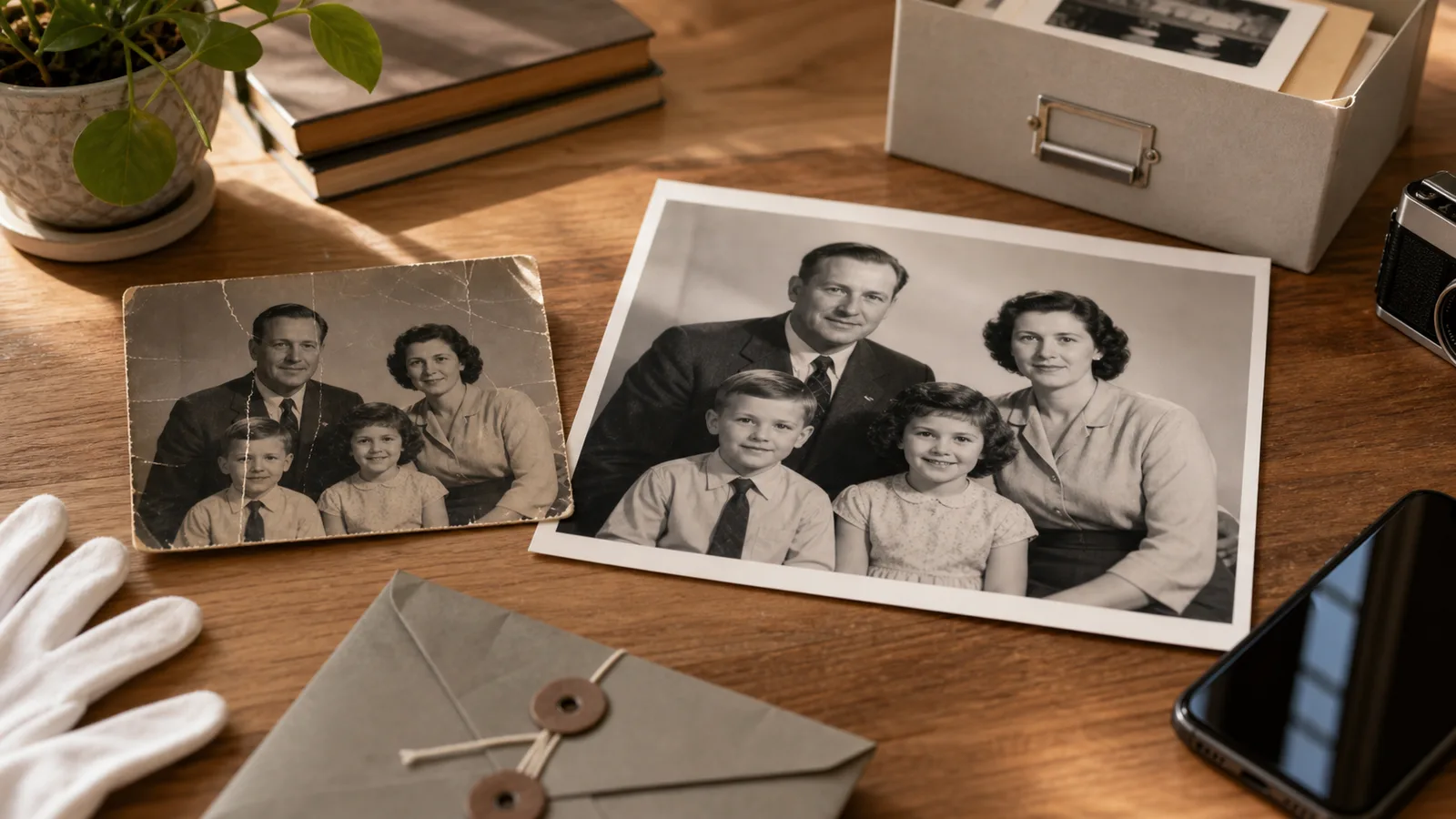
Quick answer: upscale means make a photo bigger without losing as much quality. Use it when an old photo already looks clean, but the file is too small for printing, cropping, or sharing clearly. If the photo is faded, scratched, or blurry, fix that first, then upscale the better version.
If you have a tiny scan of your mum's childhood photo, do not start by guessing file settings. Start by asking one simple question: does the photo look good, just too small?
If yes, use the free image upscaler. If no, restore the damage first so you are enlarging a cleaner photo.
When to upscale an old photo
Upscaling is useful when the photo is already decent, but the file is too small.
That usually means:
- You scanned an old print years ago and the file looks tiny on a modern screen.
- You cropped a person out of a group photo and want the crop to look less soft.
- You want to print a small photo larger than its original size.
- You downloaded an old family image from a message thread or shared album and it looks compressed.
Upscaling is not the first fix for every old photo. It will not magically remove cracks, bring back faded colour, or repair a face that is badly blurred. Think of it as the last sizing step after the photo already looks worth keeping.
Restore, enhance, or upscale?
Most family photos need one of three jobs. Pick the job before you pick the tool.
| What you see | Best first step | Why |
|---|---|---|
| The whole photo is small but clean | Image Upscaler | Makes the file larger for printing or clearer sharing. |
| The photo is faded, scratched, dusty, or low contrast | Restore demo | Fix damage before making the damage bigger. |
| Faces are soft but recognizable | Face Enhancer | Improves the part of the photo family members care about most. |
| It is black and white and you want colour | Photo Colorizer | Add colour on a copy, then upscale only if you need a larger output. |
The safest workflow is simple: scan clearly, restore if needed, enhance faces if needed, then upscale for the final print or share.
How to upscale an old photo step by step
1) Start with the best copy you have
Use the original scan if you still have it. If you only have a phone photo, choose the sharpest version and avoid screenshots from messaging apps when possible.
If you have not scanned the print yet, use our high-resolution scanning guide first. A clean scan gives the upscaler more detail to work with.
2) Fix visible damage before enlarging
If the photo has fading, scratches, dust, or weak contrast, run one restore pass first. Enlarging a damaged file can make every crack and stain easier to see.
Already have a scan or phone photo? Restore a free photo in PhotoScanRestore. No card needed. Then upscale the improved version if you want a larger print.
3) Upload the clean version to the image upscaler
Open the Image Upscaler, upload the cleanest file, and choose the size that matches the job.
For most family photos, start with 2x. Use a larger increase only when the original is sharp enough. A tiny blurry photo enlarged too far can start to look artificial.
4) Check faces before you download
Zoom in on the people, not just the background. If faces still look soft, try the Face Enhancer before making a final print.
For family photos, likeness matters more than sharp wallpaper, trees, or clothing texture.
5) Keep the original and the upscaled version
Save both files. Keep the untouched original scan as your archive copy, and use the upscaled version for printing, framing, or sharing.
Common mistakes
Upscaling before restoring. If the photo is damaged, restore first. Otherwise the upscaler can make scratches and stains more obvious.
Trying to make a tiny file huge. If the starting image is very small, a 2x version may look natural while a much larger version looks strange.
Judging only on your phone. A photo can look fine on a small screen and still look soft when printed. Check it on a larger screen before ordering a print.
Deleting the original. Keep the first scan. Future tools may improve, and you never want your only copy to be an edited version.
What to do after upscaling
If the photo is for a frame, order one small test print before printing several copies for the family. Look at faces, hands, and any important writing on the back or border.
If it is for a family archive, save the original scan, restored copy, and upscaled print copy in the same folder. Give them clear names like:
mum-school-photo-original.jpg
mum-school-photo-restored.jpg
mum-school-photo-upscaled-print.jpg
That little bit of naming saves future you from wondering which version is safest to keep.
FAQ
Can I upscale old photos online?
Yes. Use an online upscaler when the photo is already clean but too small. If the image is damaged, faded, or scratched, restore it first.
Should I restore or upscale first?
Restore first when the photo has visible damage. Upscale first only when the photo already looks good and the main problem is size.
Can upscaling fix a blurry old photo?
It can make a small file larger, but it is not the same as face enhancement. If the face is soft, use a face enhancer before final upscaling.
Is upscaling good for printing old photos?
Yes, when the starting scan is sharp enough. Upscaling helps small files print larger, but it cannot replace a clean scan.
What is the best size increase?
Start with 2x for most family photos. Only go larger when the original scan is sharp and you need a bigger print.
Editor's note
The practical order is capture, restore, then upscale. For a full workflow, start with how to scan old photos in high resolution, then use the image upscaler when your clean photo is ready for a larger print.